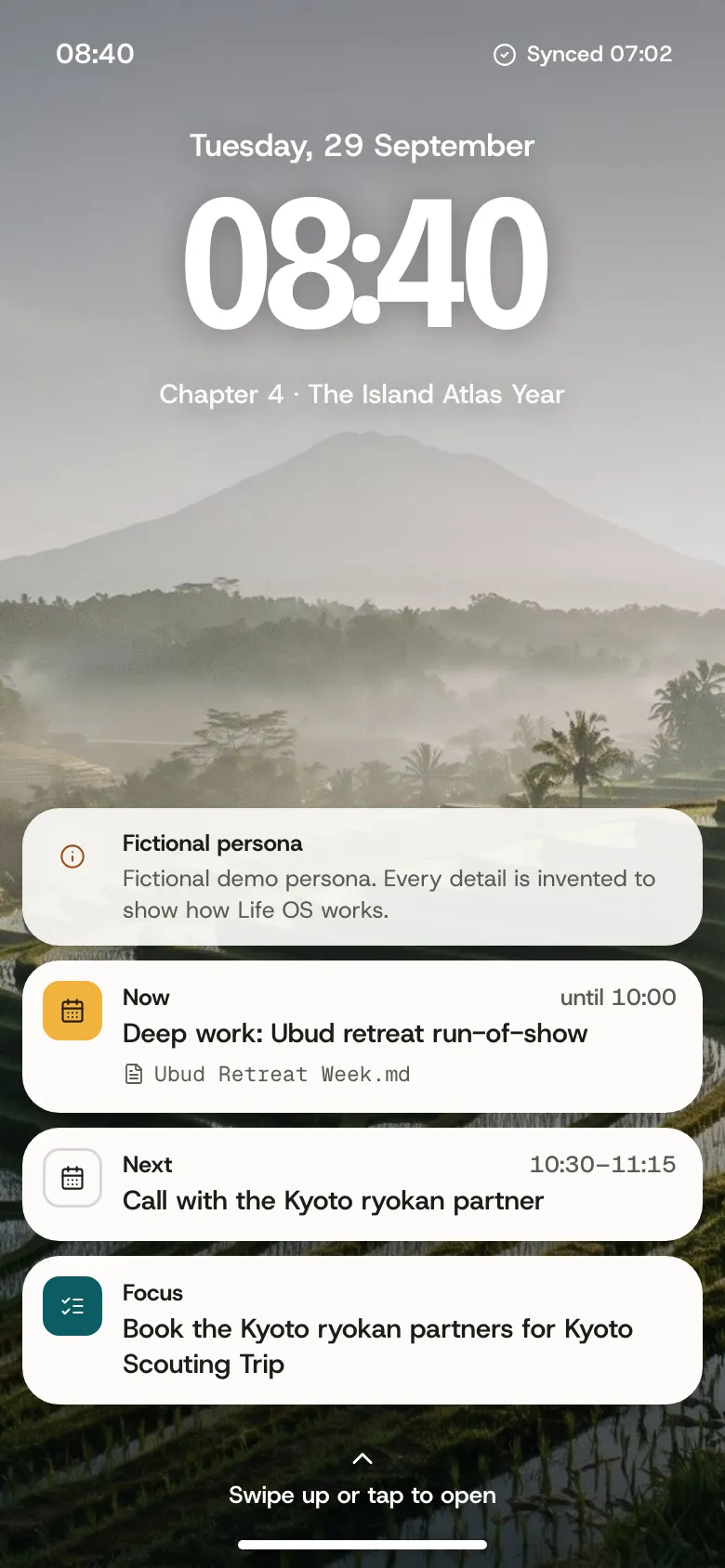
Good morning, Maya
FictionalChapter 4 · The Island Atlas Year · 2025 – now
This week
Say no to one good thing so the great ones have room.
Life OS turns the Markdown notes you already keep into a living picture of your life: today, projects, people, places and the long arc. Beautiful without decorating, and it all stays on your device.
Preview 0.3.4 · macOS 13 or later · or any modern browserPreview 0.2 · runs in any modern browser · nothing to install
Chapter 4 · The Island Atlas Year · 2025 – now
Say no to one good thing so the great ones have room.
The same notes can be an operating system, a magazine or a space to think. Switch whenever you like; the files never change. Start with Socratis, Ask, Desktop or Editorial. Choose which views appear in Settings, with agent organisation, automation planning and voice notes.
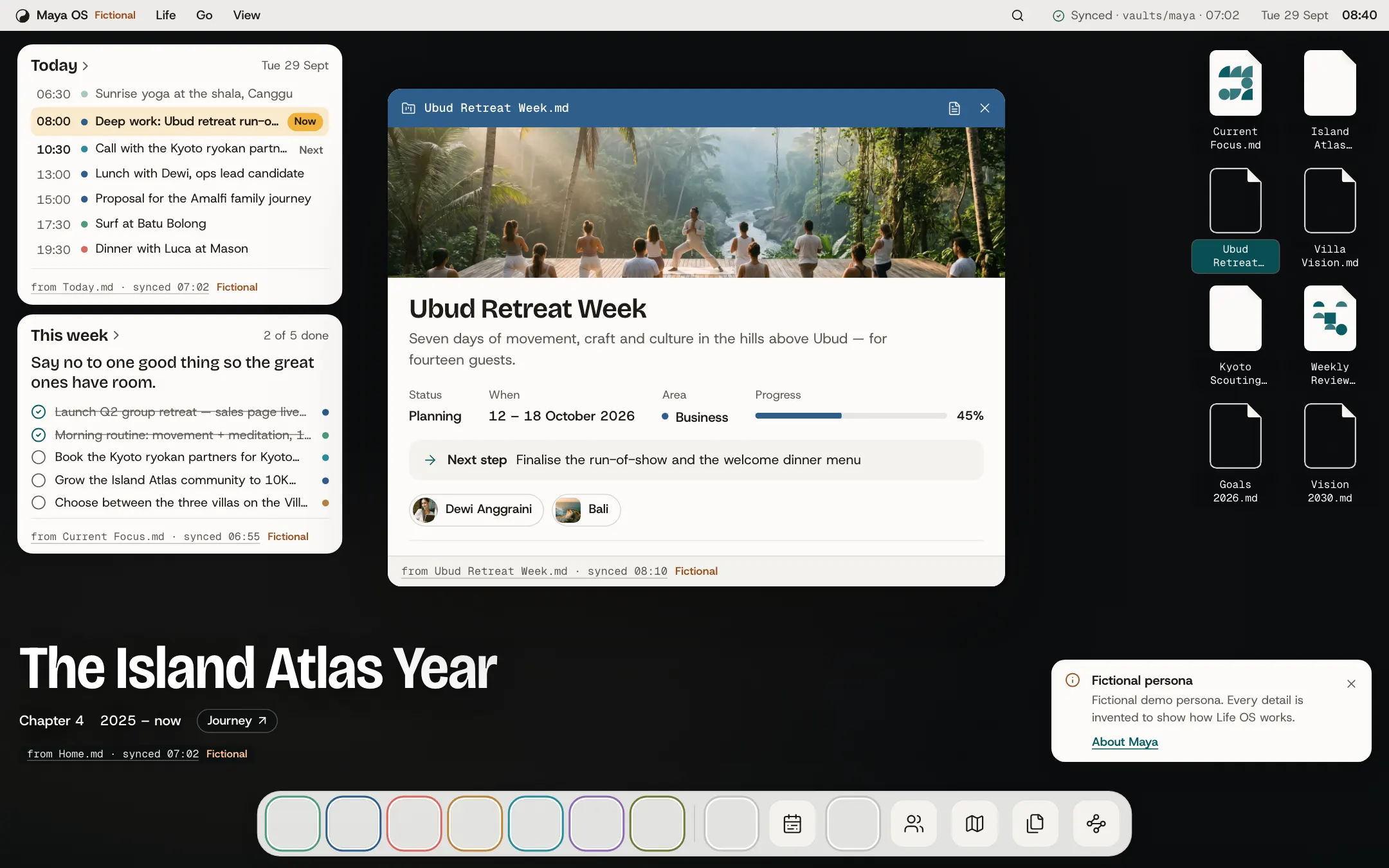
Your life as an operating system. Notes sit on the desktop and open into living windows.
Open this view live/app/?persona=maya&world=desktop&theme=light
Meet Socratis: a Greek-inspired council of 19 agents, guided practices, life pillars and a living record. Explore Socratis and see how your agents and automation plans connect.
No migration and no decorating. Point Life OS at what you keep today, or start fresh in a few minutes.
Pick one. You can bring in the rest later.
You already keep notes
Open an Obsidian vaultChoose any folder of Markdown notes. Life OS reads it on your device and works out the rest: projects, people, places, daily notes. Read a GitHub repoPaste a repo that holds your notes. Public repos need nothing; a private one takes a token that's only ever sent to GitHub.You're starting fresh
Answer five quick questionsYour name, what matters and what you're working on. A starter life opens straight away. Let your AI interview youCopy our interview prompt into ChatGPT, Claude or Gemini. You read and correct every file before anything opens. Start from a templateDownload a blank vault with the folders and frontmatter already in place.Life OS is a lens over plain files. Any screen can show you the note it came from, and every claim says what kind of truth it is.
Sam OS · 05 Life Areas/
Health & Energy.md
---
type: life_area
title: Health & Energy
signal: "Sleep, exercise and environment as levers"
provenance: derived
source: https://blog.samaltman.com/productivity
---
# Health & Energy

In his public productivity essay, Sam Altman describes sleep as especially important for productivity…

> No health data is tracked for a real person. Only themes from his public writing appear here.Encrypted cloud sync across phone and desktop is on the roadmap. It isn't in this preview, and nothing here pretends it is.
Life OS for Mac reads the vault you already keep, right where it lives. Local files, with optional AI connections you control.
The browser version has the same views, the same lives and the same Setup, with optional AI sharing only when you choose to use it.
Version 0.3.4 · macOS 13 or later · Apple silicon 210 MB · Intel 216 MB
On Windows, Linux or a phone? Open Life OS in your browser. Everything above works there too.
Mac installer update in progress.
What the Mac app adds to the browser version:
The native Mac installer is being updated for Developer ID signing and Apple notarization. Public downloads are paused until verification passes.
Keep macOS security checks enabled. If an installer is rejected, stop and use the browser version.